
Discover troubleshooting tips for different issues in the AroundDeal platform and explore frequently asked questions received by the AroundDeal Technical Support team.
The AroundDeal Chrome Extension allows you to conveniently access important AroundDeal features directly within Gmail and LinkedIn. However, like with any other application, you may come across certain issues while using the AroundDeal Chrome Extension. To assist you in resolving these problems, we have provided troubleshooting tips below that you should consider if you encounter any difficulties.
Extension Compatibility
To determine which extensions are currently active, simply enter "chrome://extensions/" in the address bar of your Chrome browser. This will display a list of all installed extensions. To enable or disable individual extensions, you can simply click on the toggle switch next to each extension.
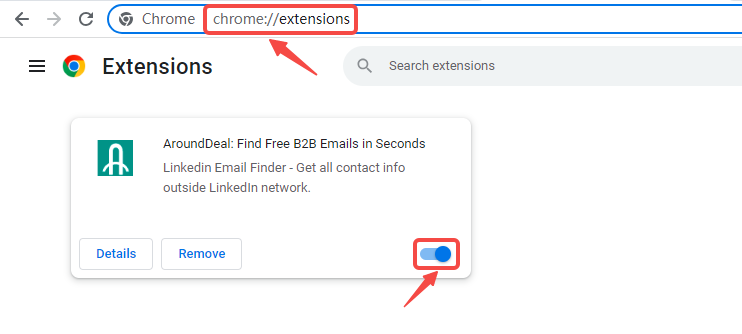
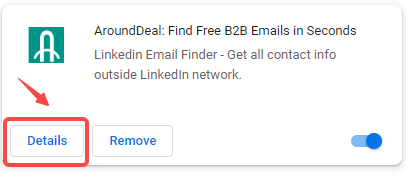
To check for compatibility issues with other extensions, simply click on "Details" next to the AroundDeal Chrome Extension on the "chrome://extensions/" page. Then, enable the option to allow the extension to run in incognito mode.
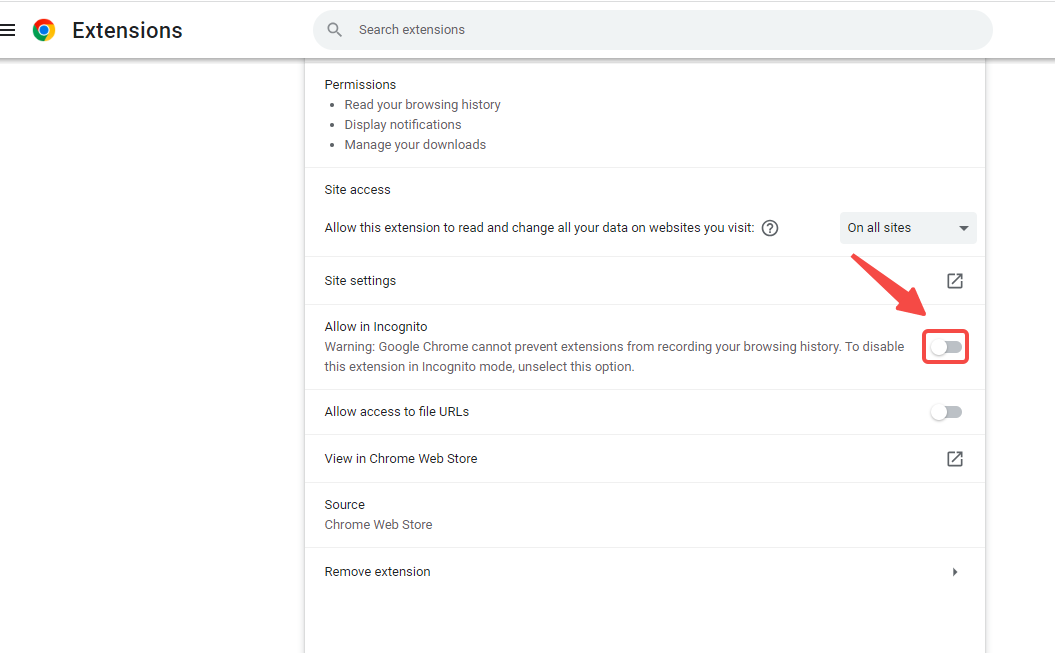
To allow the AroundDeal Chrome Extension to run in incognito mode, go to the Details menu, scroll down to "Allow in Incognito," and toggle the switch.
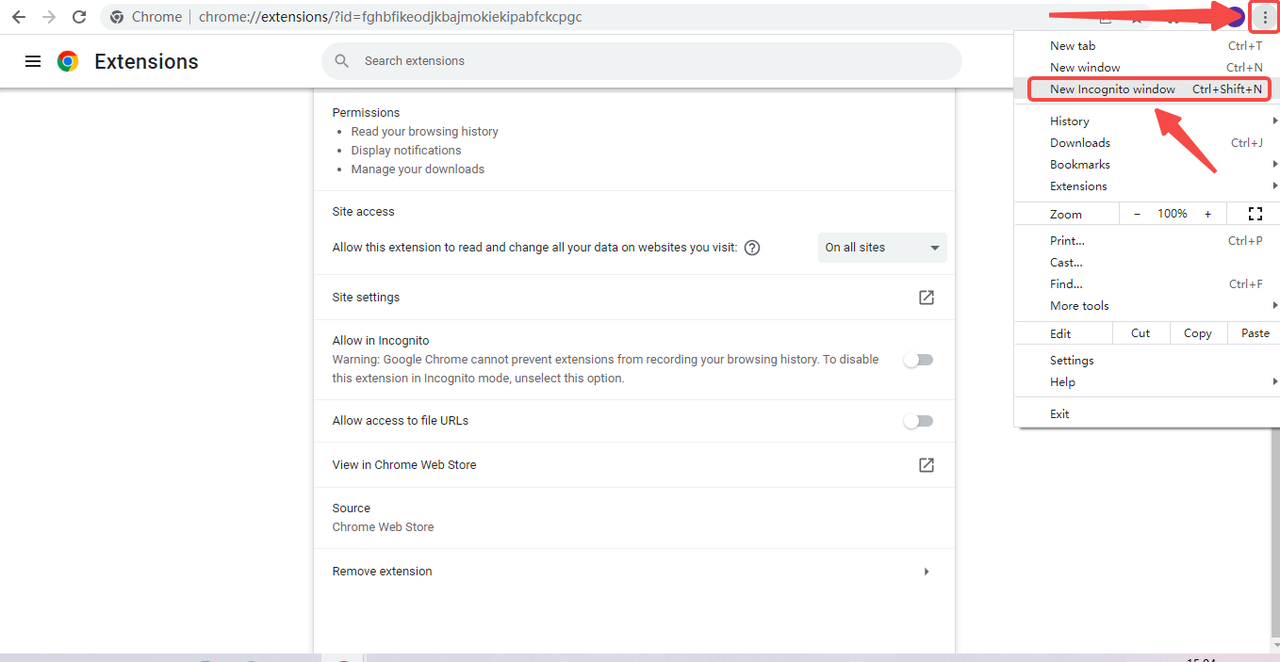
After enabling the AroundDeal Chrome Extension to run in incognito mode, open a new incognito window by clicking the three vertical dots and selecting "New Incognito Window." Log into Gmail or AroundDeal within the incognito window and test the functionality of the AroundDeal Chrome Extension. If it works properly, there may be a compatibility issue with another extension.
In case you encounter compatibility problems with another extension, AroundDeal advises taking the following steps: disabling or removing the conflicting extension, whitelisting the problematic website if the incompatible extension provides such a feature, or utilizing a separate Chrome Profile to run the incompatible extension.
If the steps above don't clear up the issue, please contact the AroundDeal Technical Support team.
Potential Solutions
Make Sure the AroundDeal Chrome Extension Is Up To Date
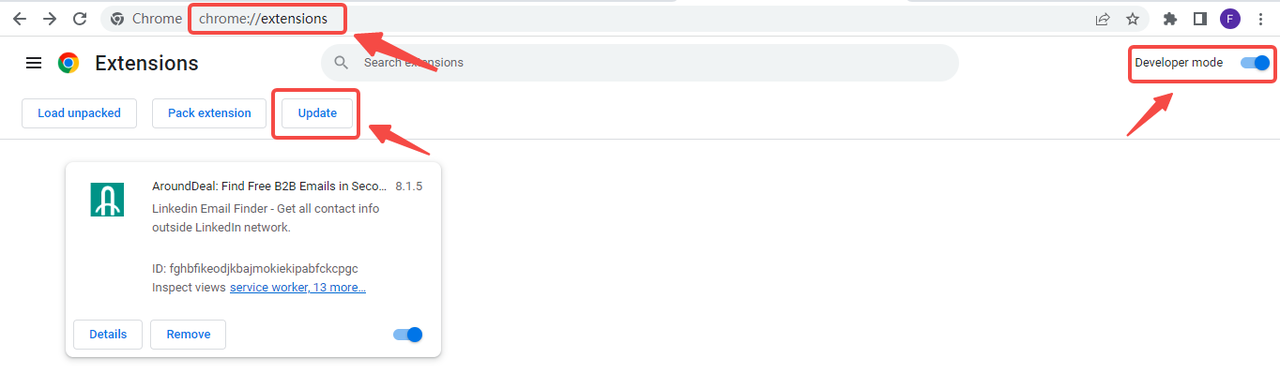
To ensure the AroundDeal extension is up-to-date, enter "chrome://extensions/" in the browser's address bar, enable Developer Mode in the top right corner, and click the Update button at the top of the page.
Make Sure the Chrome Browser Is Up To Date
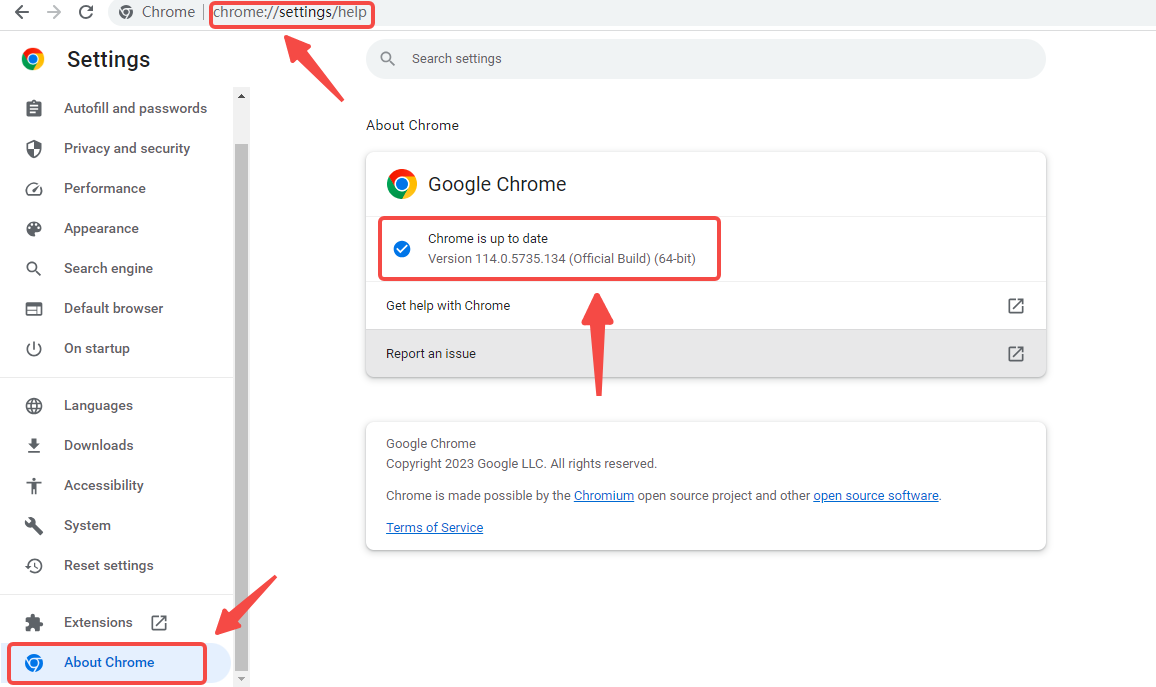
To verify if your Chrome browser is up-to-date, enter "chrome://settings/help" in the browser's address bar. The resulting page will indicate whether Chrome is up to date or provide an option to update it.
Check For Blocked Cookies
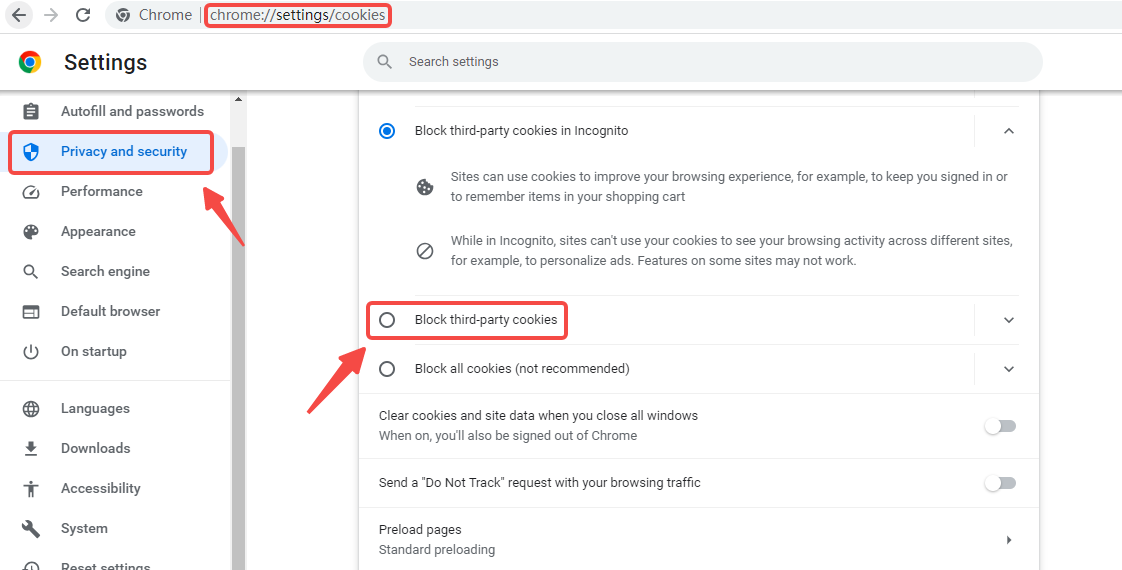
To check if you are blocking third-party cookies, enter "chrome://settings/content/cookies" in the browser's address bar and verify the status of third-party cookie blocking.
Perform a Hard Refresh
To perform a hard refresh on your browser:
- For Mac: Use the keyboard shortcut Command+Shift+R.
- For PCs: Use the keyboard shortcut Ctrl+F5. This will clear the browser's cache for the specific page and load the most recent version.
Clear Your Browser Cache
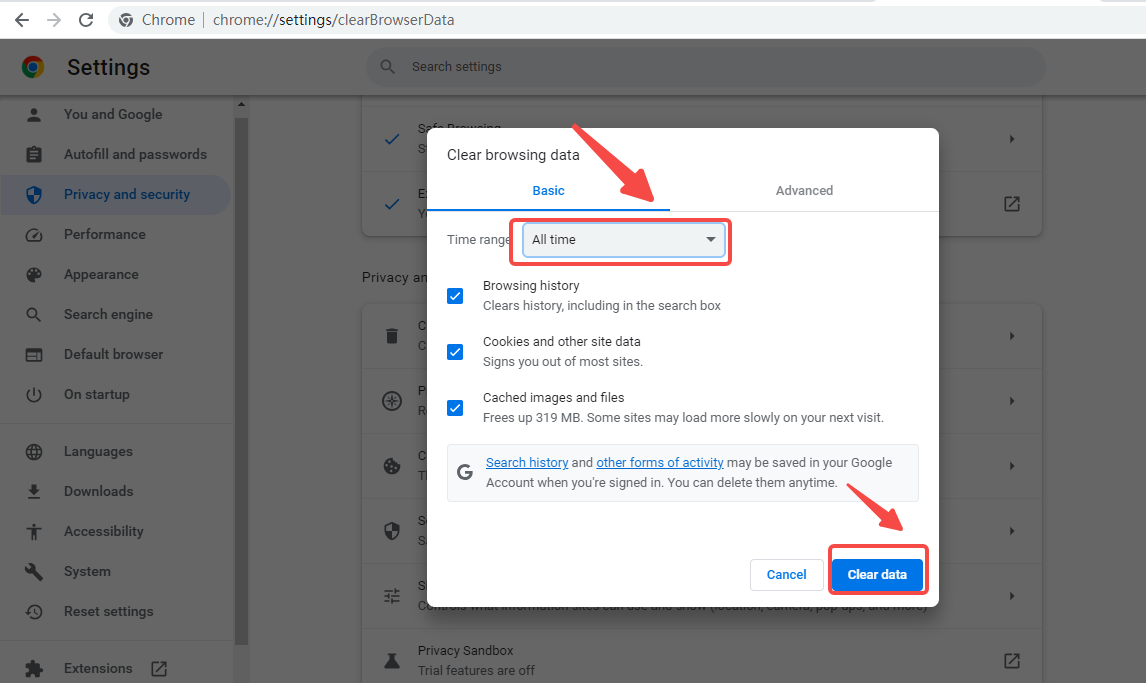
To clear the entire browser cache, enter "chrome://settings/privacy" in the browser's address bar. Click on "Privacy and Security" and then select "Clear Browsing Data."
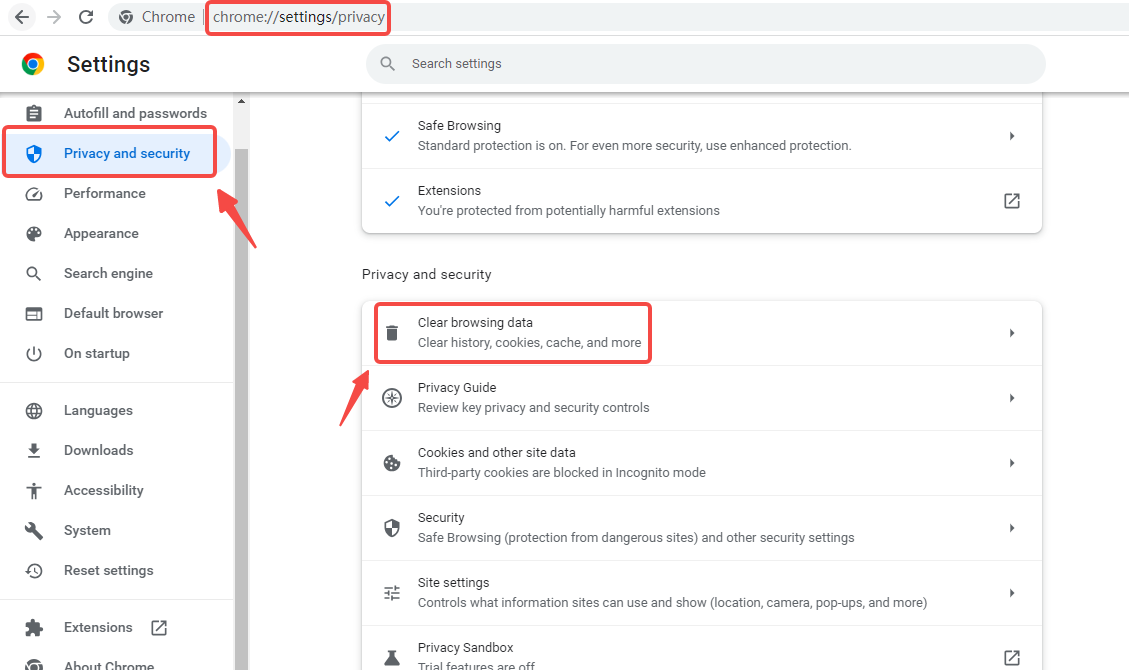
Make sure the option for "Cached images and files" is checked, choose the desired time range or select "All time," and click "Clear Data" to remove the cache.
Check For Multiple Instances of AroundDeal
To ensure proper functionality, make sure you have only one instance of AroundDeal open and only one instance of either Gmail or Salesforce open, either in a tab or a separate window.